💡 Quick Answer: You can completely eliminate advertisements, sponsored video carousels, and sluggish navigation on your LG webOS Smart TV using the open-source Clean Your TV launcher ecosystem (developed by Razdva122, lasharor, and the webosbrew community). Available in both a safe No-Root Edition (using official LG Developer Mode with automated session renewals) and a non-destructive Root Edition (using RAM-mounted overlays via the webOS Homebrew Channel), Clean Your TV replaces LG’s full-screen commercial dashboard with a clean, Apple TV-style dock, customizable app grid, and instant Magic Remote Home-button routing—backed by an emergency triple-tap escape hatch.
When LG originally debuted webOS on its television lineup in 2014, it set the gold standard for smart TV interface design. Its signature bottom-shelf “blade” ribbon was fast, responsive, and unobtrusive—allowing you to switch inputs or launch streaming services without hiding the movie, live sports broadcast, or console game playing in the background.
However, starting with webOS 6.0 and continuing through webOS 22, webOS 23, and webOS 24, LG dismantled that minimalist experience in favor of an aggressive, full-screen dashboard. Modern LG TVs greet owners with sponsored retail banners, auto-playing trailer carousels, algorithmic recommendations, and unskippable screensaver commercials. To make matters worse, LG’s “webOS Re:New” program has begun pushing these ad-heavy interfaces onto older OLED and QNED displays (such as the popular LG C1 and C2 series) that originally shipped with lighter software. Just as we explored in our guides on debloating Android TV and Google TV devices and speeding up sluggish smart TV hardware, owners of premium displays are fighting back against living room ad creep.

Through an interconnected open-source movement across Reddit (r/webos discussion thread) and GitHub, independent developers have engineered a comprehensive fix: the Clean Your TV launcher and its companion debloating toolkit. In this multi-source architectural guide, we cover the origins of the project, step-by-step native settings optimizations, deep RAM-overlay safety mechanics, and advanced homebrew integrations like webOS Dev Manager and Ad-Free YouTube.
The Lineage: How the “Clean Your TV” Movement Evolved
The modern webOS launcher ecosystem is the result of continuous community collaboration spanning several open-source breakthroughs:
- The Android TV Ancestor (
tv-vibehack): Developed originally to strip sponsored recommendations off Chromecast and Nvidia Shield devices, this project proved that an Apple TV-style dock could dramatically improve TV usability. - The First webOS Port (
OmkarK97/webos-vibehack): Proved that webOS Developer Mode could render a custom HTML/CSS/JavaScript interface locally on LG hardware, but required a secondary computer running on the local Wi-Fi network to intercept remote Home button events. - The Standalone No-Root Edition (
Razdva122/clean-your-tv-lg-webos): Removed the external PC requirement entirely by creating an on-TV “Home Helper” service. Added precompiled desktop installers for Windows, macOS, and Linux, along with automated token renewal for Developer Mode. - The Advanced Root Edition (
lasharor/cleanyourtv-WebOS): Designed for jailbroken displays running the webOS Homebrew Channel. Implemented RAM-mounted boot overlays, background ad service termination, custom IPTV M3U playlist integration, and Home Assistant smart home camera popups.

Phase 1: Disable Built-In Ads & Telemetry via Native Settings
Even before installing custom software, you should immediately toggle off LG’s built-in advertising flags. While these options are intentionally tucked deep inside sub-menus, disabling them eliminates high-bandwidth commercial streams.
1. Disable Home Promotion and Content Suggestions
- Press the Settings (gear icon) on your LG Magic Remote and open All Settings.
- Navigate to General ➔ System ➔ Additional Settings.
- Select Home Settings (or Home Page Settings).
- Toggle Home Promotion to OFF (disables promotional retail banners at the top of the interface).
- Toggle Content Recommendation to OFF (stops the TV from requesting trending video carousels from LG cloud services).
2. Kill Screensaver Advertisements
Under recent firmware builds and the webOS Re:New initiative, screensavers default to displaying sponsored marketing cards when playback is paused. Similar to our guide on customizing lockscreens and ambient modes, you can shut this down:
- Go to Settings ➔ All Settings ➔ General ➔ System ➔ Additional Settings.
- Locate Screen Saver Promotion (or Screen Saver Setting ➔ Promotion).
- Toggle it firmly to OFF.
3. Bypass the Home Screen on Startup
If you regularly game on a PlayStation 5, Xbox Series X, or stream through an Apple TV 4K or soundbar setup (as detailed in our home theater audio guide), you do not need to boot into webOS at all:
- Navigate to General ➔ System ➔ Additional Settings ➔ Home Settings.
- Click on Power On Screen.
- Change the selection from Home to Recent Input. The television will now power on directly into your active HDMI port.
4. Revoke ACR & Data Harvesting Agreements
LG uses Automated Content Recognition (ACR) to inspect audio/video fingerprints on screen and report your habits to advertisers. Restricting these terms cuts background network traffic significantly:
- In Additional Settings, turn off Live Plus and Live Ads.
- Go to Support ➔ User Agreements (or Terms of Use under General).
- Accept only the required Terms and Conditions and Privacy Policy.
- Leave all optional agreements unchecked: Viewing Information, Voice Information, and Interest-Based Cross-Device Ads.
Phase 2: What is “Clean Your TV”? Core Architecture
While native settings suppress specific promotional rows, the underlying webOS operating system still allocates substantial memory to rendering widgets, web views, and background search daemons. On embedded TV hardware with modest quad-core chipsets and 1.5 GB to 2 GB of RAM, this causes delayed remote inputs and dropped frames.

Clean Your TV replaces this bloated interface with a pure, lightweight web app rendered through webOS’s internal Chromium engine (WAM). Key architectural capabilities include:
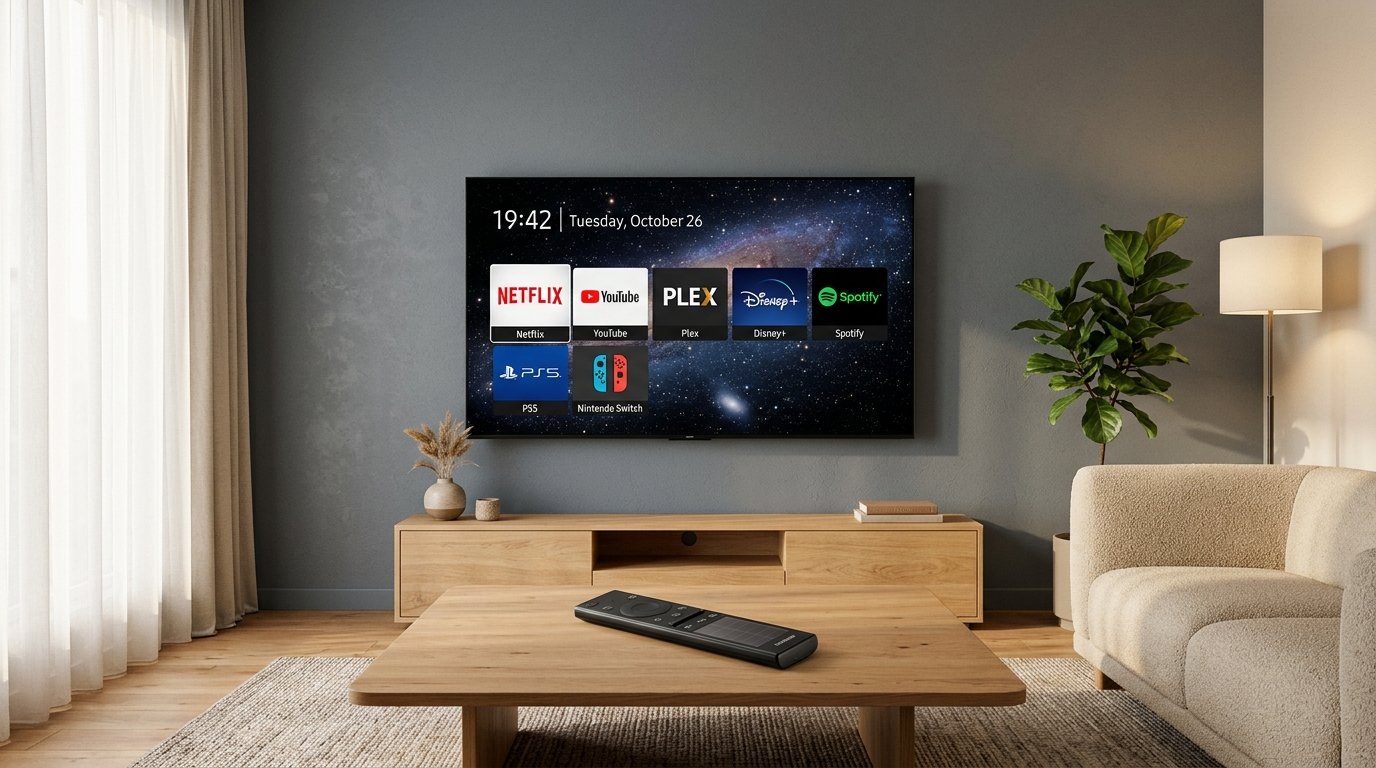
- Focused Minimalist Layout: Displays an uncluttered horizontal dock for your everyday applications (YouTube, Netflix, Plex, Prime Video, Spotify) alongside an organized secondary grid for your complete installed library.
- 100% Local Execution: Operates entirely on the local television hardware. No tracking pixels, no telemetry pings, and no cloud account lock-in.
- Native Home Button Routing: Seamlessly hooks into remote control key events. Pressing the Magic Remote’s physical
Homebutton instantly summons Clean Your TV without requiring external microcontrollers or helper servers. - Built-In Emergency Escape Hatch: Need to access a legacy LG system tool or content store? Pressing the
Homebutton 3 times in rapid succession (within 2 seconds) temporarily suspends the helper and displays the stock LG home screen. - Web Preview Sandbox: You can test-drive the launcher layout and navigation directly in your desktop or smartphone browser through the official Clean Your TV Web Preview.

No-Root vs. Root: Deep Architectural Comparison
One of the strongest advantages of the Clean Your TV project is that it offers two distinct operational paths based on your comfort level:
| Feature | No-Root Edition (Developer Mode) | Root Edition (Homebrew Channel) |
|---|---|---|
| Warranty Status | 100% Safe (Uses sanctioned LG APIs) | Requires system exploit (RootMyTV) |
| Underlying Technique | App Sandbox + On-TV Home Helper | RAM-mounted boot overlay (tmpfs) |
| Disk Modification | None (Standard app storage) | Zero physical system files modified |
| Home Button Handling | Background service listener | Kernel / input daemon hook |
| Session Lifespan | Auto-renewed indefinitely via script | Permanent across reboots |
| Telemetry Killing | Visually suppressed / bypassed | Terminates background ad daemons |
| Additional Features | Clean Dock & App Grid | Custom M3U IPTV & Home Assistant alerts |
| Reversibility | Delete Developer Mode app | Reboot without root or toggle off |
💡 The RAM-Overlay Safety Guarantee: A common misconception is that the Root Edition of Clean Your TV overwrites delicate system partitions on your TV’s flash storage. In reality, developer lasharor engineered the tool to mount as a temporary overlay in RAM (via tmpfs union mounts) during the boot cycle. Your original LG firmware files remain untouched on the read-only flash storage, ensuring an ordinary cold reboot or uninstall cleanly restores the factory state.
Phase 3: Step-by-Step Installation Guide
Option A: The No-Root Edition (Recommended for Most Users)
The No-Root edition is the optimal route for anyone wanting an ad-free interface without modifying system partitions or risking security boundaries.
Step 1: Activate LG Developer Mode
- Register a free account on the official LG Developer Lounge portal.
- On your LG TV, launch the LG Content Store, search for
Developer Mode, and install the official application. - Open the app, log in with your developer account credentials, and toggle Dev Mode Status to ON. Restart your TV when prompted.
- After rebooting, re-open Developer Mode and toggle Key Server to ON. Note down your TV’s IP Address and 6-character Passphrase.
Step 2: Deploy with the Cross-Platform Desktop Installer
- Download the latest release for your operating system (Windows
.exe, macOS Intel/Apple Silicon, or Linux) from the Clean Your TV Releases Page. - Connect your PC to the same local Wi-Fi or Ethernet network as your television.
- Launch the installer, enter your TV’s IP address and Key Server passphrase, and click Install.
- The installer deploys the Clean Your TV Launcher package alongside the Home Helper service.
- Enable the bundled Developer Mode Auto-Renewal feature. Standard Developer Mode sessions enforce a 1,000-hour countdown; the auto-renewal daemon automatically communicates with LG’s authentication endpoints in the background, keeping your installation active forever without manual renewal.
Option B: The Root Edition (Homebrew Channel)
For users with already-jailbroken displays running RootMyTV or the webOS Homebrew Channel:
- Open the webOS Homebrew Channel application on your television.
- Search for
Clean Your TV(or add the lasharor repository URL) and click Install. - Enable the optional Debloat Script. This script halts native advertising daemons (such as
ad.lgsmartad.compolling andcom.webos.service.telemetry). - Enjoy persistent kernel-level Home button mapping that stays active through standby cycles.
Bonus: Supercharge Your TV with the webOS Homebrew Ecosystem
Once you have Clean Your TV running, you can pair it with several legendary open-source utilities developed by the broader webosbrew community:
- webOS Dev Manager (
webosbrew/dev-manager-desktop): A polished, open-source desktop program for Windows, macOS, and Linux that lets you wirelessly sideload.ipkpackages, manage installed apps, explore the TV filesystem, and run terminal commands without touching complex command lines. - YouTube AdFree for webOS (
youtube-webos): A modified native YouTube client that integrates SponsorBlock, removes sponsored segments and video ads, hides YouTube Shorts rows, and supports high-bitrate AV1 playback. (Requires uninstalling the stock YouTube app first, as it shares the officialyoutube.leanback.v4package ID). - Moonlight for webOS: An ultra-low latency game-streaming client optimized for LG OLED panels, letting you stream 4K 120Hz PC games with HDR directly to your television over your local home network.
- Home Assistant Assist & Camera Overlay: Root users can configure Clean Your TV to receive MQTT and webhooks, allowing smart doorbell cameras or security feeds to pop up in a picture-in-picture card while you watch content.
Phase 4: Network-Level Ad & Telemetry Blocking
To ensure your TV cannot fetch background marketing telemetry even if an operating system update modifies native settings, add these endpoints to your Pi-hole, AdGuard Home, or NextDNS DNS filter:
# LG Smart TV Ad & Telemetry Blocklist
ad.lgsmartad.com        # Commercial banner ads & video marketing
ibis.lgappstv.com       # ACR viewing analytics & content fingerprinting
aic-ngfts.lge.com       # Content suggestion trackers
rdx.lgtvsdp.com         # Smart service telemetry & device profiling
us.lgtvsdp.com          # Regional promotional payload fetcher
edges.lgtvcommon.com    # UI recommendation telemetry
kic.lgtvcommon.com      # Cloud device telemetry
nmetrics.v-api.lge.com  # User engagement metrics collector
smartclip.net           # Third-party programmatic ad network
smartshare.lgtvsdp.com  # Media promotion telemetry
⚠️ Crucial Whitelist Endpoints: Ensure you do not block
lgtvonline.lge.comorngfts.lge.com. These domains are mandatory for downloading official application updates from the LG Content Store and validating display panel firmware updates.
Pro Tip: Program Magic Remote Quick Access Shortcuts
While Clean Your TV makes the home interface lightning fast, the fastest launch is skipping the dashboard entirely. LG Magic Remotes include a built-in hardware shortcut system known as Quick Access:
- Open your favorite app or switch to an HDMI input (e.g., YouTube, Netflix, Plex, or your game console).
- Press and hold any number key from 1 through 8 for 2 seconds.
- Select Yes when prompted to register the shortcut.
- From now on, simply hold that number key for one second to jump straight into that app from any screen—completely bypassing all menus.
- Holding 0 brings up the Quick Access editor to rearrange or customize your mapped shortcuts.
Frequently Asked Questions (FAQ)
Will installing Clean Your TV void my LG warranty?
No. When using the No-Root Edition, Clean Your TV operates strictly within LG’s sanctioned Developer Mode sandbox. It does not tamper with firmware partitions or bootloaders and carries zero risk to your warranty. If you ever want to revert, uninstalling the Developer Mode app restores factory conditions immediately.
What if my TV receives an official webOS firmware update?
Because the No-Root edition relies on official developer APIs, firmware updates typically do not break the launcher. If an update logs you out of Developer Mode, simply open the Developer Mode app on the TV and turn Key Server back on. For Root users, major firmware updates can patch exploits; we recommend disabling automatic updates under All Settings ➔ Support ➔ Software Update to maintain root permanence.
Can I still access the factory LG Home dashboard?
Yes. Clean Your TV features an instant hardware fail-safe. Pressing the Home button 3 times within 2 seconds immediately bypasses the custom launcher and opens the stock LG webOS dashboard, allowing you to access legacy widgets, input hubs, or deep account settings whenever needed.
Final Thoughts: Reclaim Your Display
You paid for high-end display hardware—whether an OLED evo, Mini LED, or high-refresh gaming panel—not a subsidized billboard. By pairing native settings toggles with DNS-level ad blocking and the community-built Clean Your TV launcher, you can eliminate sponsored interruptions, eliminate frame drops, and return your television to an instant, distraction-free entertainment centerpiece.