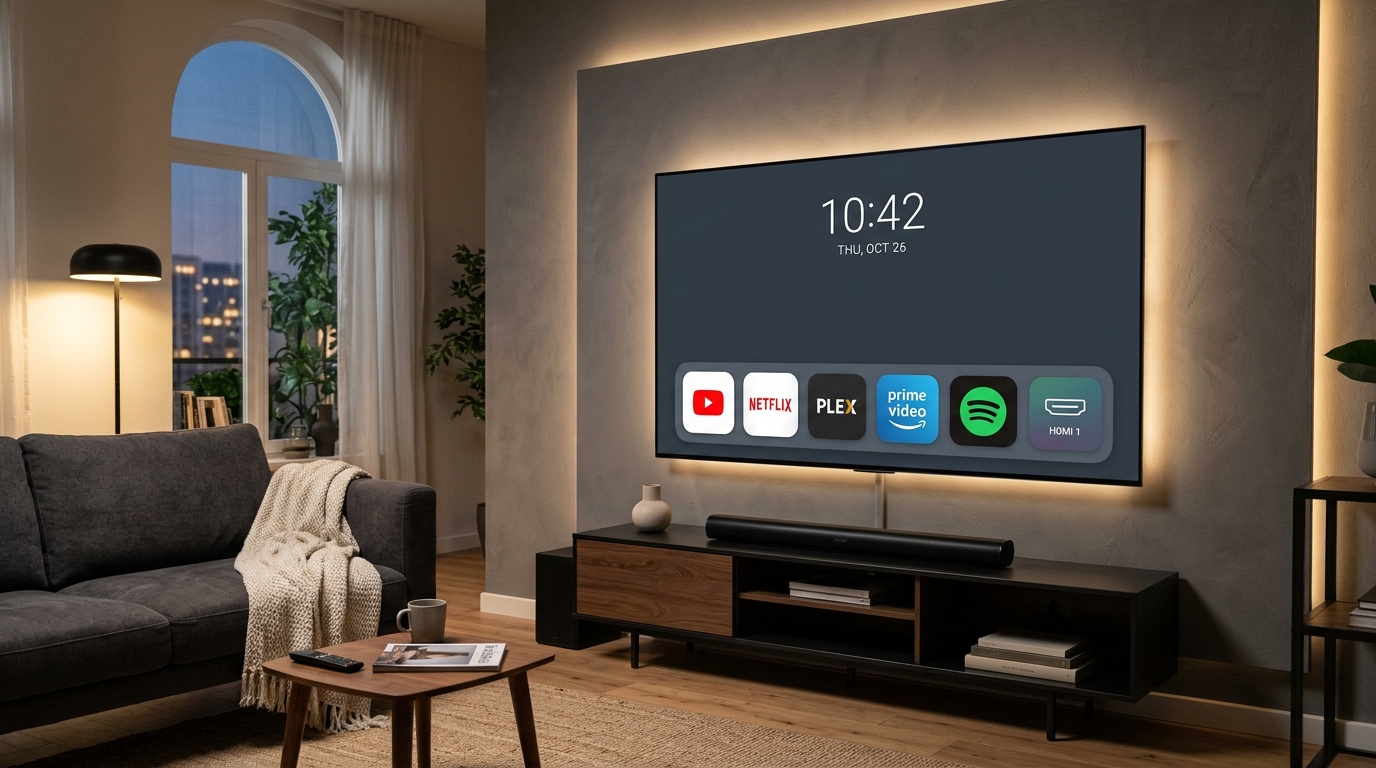
When your Android TV or Google TV goes idle, it displays a standard selection of backdrop photos curated by Google. While these stock wallpapers look pleasant, they lack personal customization. Fortunately, you can easily set your own personal family photos, rotating Google Photos albums, custom 4K wallpapers, or even Apple TV’s iconic 4K aerial drone screensavers as your TV’s lock screen wallpaper.
In this updated 2026 guide, we cover the top 3 methods to customize your Android TV and Google TV screensaver completely free of cost.
Method 1: Use Photo Gallery and Screensaver (Google Photos & Custom Albums)
The Photo Gallery and Screensaver app is one of the most reliable tools for displaying your personal Google Photos albums, Google Drive folders, or local USB wallpapers directly on your Android TV screen.
- Open the Google Play Store on your Android TV.
- Search for “Photo Gallery and Screensaver” (developed by Furnaghan) and click Install.

- Once installed, open your TV’s Settings > Device Preferences (or System) > Screen Saver.

- Under the Screen Saver options, choose Photo Gallery and Screensaver as your default screensaver.

- Now open the Photo Gallery and Screensaver app from your Apps menu.

- Click on Settings inside the app.

- Select Photo Source from the settings menu.

- Select Google Photos to link your cloud library, or choose Internal Storage / USB Drive to use downloaded 4K wallpapers.

- Sign in with your Google account. If your TV and phone share the same Google ID, authentication takes just one click.

- Choose the specific Google Photos album (e.g., “Family Vacations” or “Favorites”) you want to display on your TV.

- Whenever your TV is idle, your custom photo album will cycle with smooth cross-fade transitions and clock/weather widgets!

Method 2: Get Apple TV’s 4K Aerial Drone Screensavers (Aerial Views App)
If you want the stunning 4K HDR aerial video screensavers from Apple TV (flying over London, Hawaii, New York, and underwater coral reefs) on your Android TV, the open-source Aerial Views app is the best free solution.
- Open Google Play Store and install Aerial Views (or Aerial Dream).
- Go to Settings > System (or Device Preferences) > Screen Saver.
- Select Aerial Views as your active screensaver.
- Open Aerial Views settings to toggle 4K HDR playback, display current local time/weather, and enable location descriptions.
Method 3: Configure Google TV Ambient Mode from Your Smartphone
On modern Google TV devices (Chromecast with Google TV, Sony, TCL, Onn 4K), you can manage your lock screen ambient mode directly using the Google Home app on your phone:
- Ensure your phone and Google TV are connected to the same Wi-Fi network.
- Open the Google Home app on your Android or iPhone.
- Tap on your TV’s tile and select Settings (Gear Icon) > Ambient Mode.
- Select from Google Photos (choose specific people or pets), Art Gallery (fine art and satellite captures), or Generative AI Art.
- Adjust slide transition speeds and weather overlays.
Frequently Asked Questions
How do I adjust the screensaver start timeout?
Go to Settings > System > Power & Energy > Screen Saver timeout and set the idle duration (e.g., 5 minutes, 15 minutes, or 30 minutes).
Will keeping a screensaver on cause OLED screen burn-in?
No. Both Photo Gallery and Aerial Views continuously rotate pictures and pan video angles, preventing static image retention on OLED and QLED panels.